DNS Resolution: The Complete Flow

Firstly Let’s understand…
What is This DNS?
Answer: DNS (Domain Name System) is like a “phonebook*” but for the internet. we humans search information online with domains like “google.com”, Web Browsers interact with IP addresses like (172.250.3.2). DNS is the program that translates this human readable “google.com” into browser readable IP addresses. With the help of DNS we eliminate the need to memorise the IP address.
This Process of Converting domain name to IP address is called as DNS Resolution (Domain Name Resolution).
DNS Resolver
DNS Resolver is the program that acts as a middleman between browser and DNS Server. The Sole Purpose of DNS Resolver is To Resolve the Domain Name eg. fetching ip addresses A (IPv4) and AAAA(IPv6) Records. The DNS resolver is also the first step in the DNS lookup
The Steps Involved In DNS lookup
1. User Types google.com into their browser. Then this query is recieved by DNS Resolver.
2. DNS Resolver then queries to the Root Server.
“There are 13 Root Servers Globally And More Than 600 Global Implementations/Copies of These Servers”
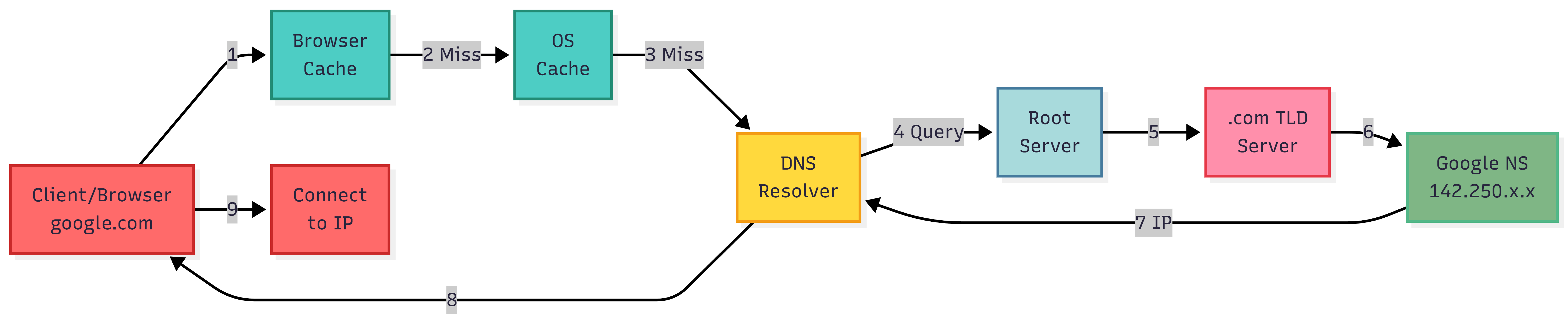
3. Root Server responds to the Resolver with address of a Top Level Domain (TLD) DNS (eg. com, .gov, .in) which stores the information for it’s domains. In this case the request is pointed towards .com TLD Server.
4. Then Resolver makes request to .com TLD Server.
5. The TLD server responds with the ip address of the domain’s nameserver. (google) in this case.
6. Again the resolver queries to the domain’s nameserver.
7. Finally, The IP address for google.com is then returned to the resolver from the domain’s nameserver.
8. The DNS Resolver then responds to the browser with the IP address of the google.com (142.250.x.x).
Once, These Steps Are Complete and DNS Resolver has returned the IP address of the google.com, the browser is able to make the request for the webpage.
DNS Caching
DNS caching is used to enhance the performance of the DNS Resolution process, Caching also reduces the load on the DNS Servers. Caching is maintained at Multiple Level.
Browser Cache: The browser caches DNS information locally to avoic redundant queries for frequent domain visits.
Operating System Cache: The OS also caches DNS responses, providing dual layer of effeciency.
DNS Resolver Cache: The DNS Resolver caches responses from authoratative DNS server to quickly respond to future queries for the same domain.
DNS Design Principles (Characterstics)
1. Hierarchical Namespace: DNS uses a Tree Structure like root (.) → TLD (.com) → NS (google) → subdomains (mail.google).
2. Decentralization: No Single Point of Failure or Control, Multiple root servers and their copies/instances.
3. Delegation: .com delegates authority for example.com to that of domain’s nameservers.

4. Loose Coupling: All Servers operate Independently.
5. Caching: Caching Reduces query load and improves response time.
6. Redundancy: Multiple Root and Nameservers per zone.
Dig Utility
dig is a command-line DNS inspection tool. it is used to retrieve and display various DNS properties of a hostname or IP address, such as it’s DNS records and authoritative name servers.
Installing dig
dig is not a stand alone command it comes as a package. you can install dig by installing the BIND 9 package.
Windows
With the help of chocolety package manager you can directly install
digcommand.
Note: Run Powershell with Administrator Privileges
or, you can directly install from the bind website just don’t forget to update system environment variables
choco install bind-toolsonly
macOS
Install bind with
homebrew
Note: if you don’t have homebrew, installhomebrewfirst and then installbind
brew install bind
Linux
dig is by default installed in most linux distros.
dig -v
if it’s not installed. it comes from
dnsutilspackage in linux
sudo apt-get install dnsutils
once installed dnsutils run dig -v to confirm
Dig Commands
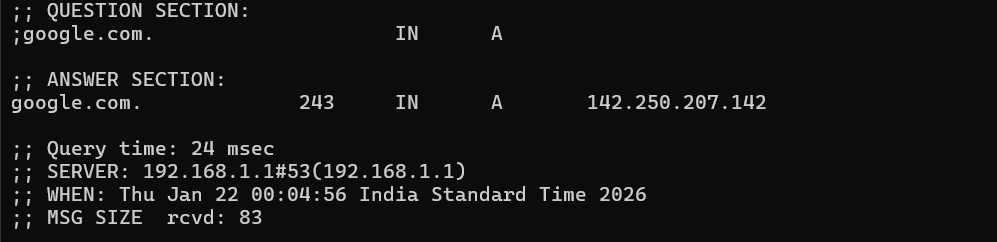
dig google.com
The Above Cmd Returns the A record for google.com
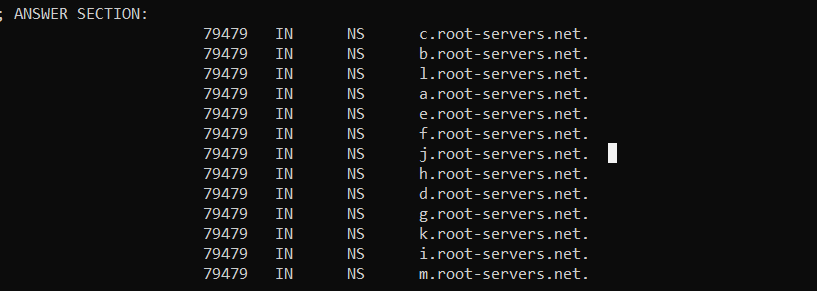
dig . ns
the above command fetches the list of all 13 root DNS servers (a.root-servers.net to m.root-servers.net).
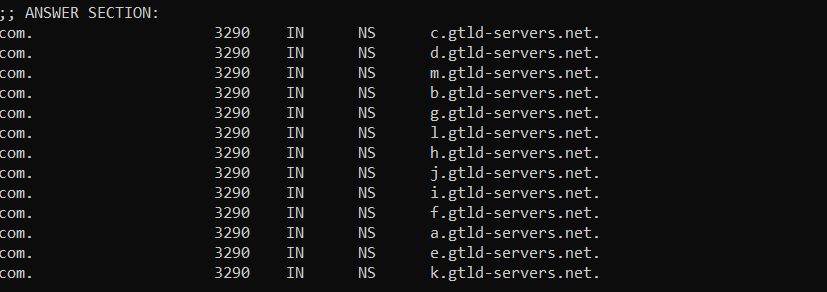
dig .com ns
This command queries the .com TLD returning the list of authoritative nameservers that manage the .com top-level domain (like a.gtld-servers.net, b.gtld-servers.net, etc.).
dig google.com ns
This command queries for the NS (nameserver) records of google.com, returning the authoritative nameservers that manage the google.com domain (like ns1.google.com, ns2.google.com, ns3.google).
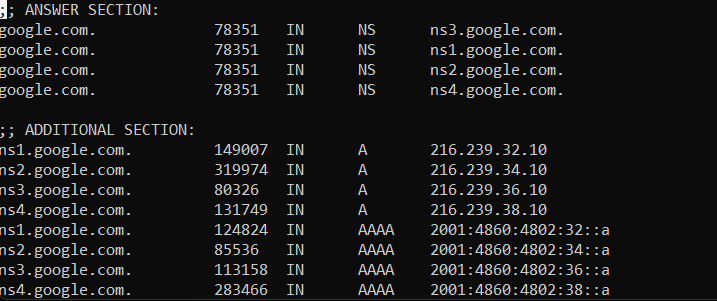
dig google.com +trace
The above command performs a complete DNS resolution trace from the root servers down to google.com's authoritative nameservers, showing each step (root → .com TLD → google.com nameservers) and the responses at each level. just as we’ve expected and saw above with diagrams.
Questions
- Why browser doesn't handle dns resolution by itself?
- Short Answer Browsers Could Handle DNS Resolution but don’t because it’s a System Level Function and Many Applications use it not just Browser. eg. email app, games, cli and any tool that needs DNS.
- Which Protocol DNS uses TCP or UDP?
Both, DNS over UDP is the default mechanism for most DNS queries. UDP is a lightweight, connectionless protocol that prioritizes speed and efficiency.
When the response data exceeds the 512-byte limit, DNS over TCP is Used through its application-layer logic.
- Challenges with DNS?
A misconfiguration in a single DNS server, such as a missing or mistyped IP address in an authoritative server, can lead to cascading failures for all of the services that communicate with it.
DNS resolution issues are often the root cause of network outages sometimes.
- Common DNS Issues?
DNS_PROBE_FINISHED_NXDOMAIN: This error occurs when the domain cannot be found, sometimes because the domain doesn’t exist, or there’s some misconfiguration in the DNS.
DNS Server Not Responding: This error occurs when the DNS server is down, unavailable, or unable to process requests.
Conclusion
DNS is the backbone the internet. Knowing how DNS functions helps us solve DNS problems, enhance website performance, and ensure smooth digital experiences.
DNS is a crucial system that ensures internet communication remains seamless and efficient.
From translating domain names into IP addresses to caching and load balancing, DNS handles massive amounts of traffic behind the scenes.